
Files
Core, plugins, themes, uploads and custom paths. The scanner looks for eval() chains, base64 obfuscation, injected scripts and webshell markers, with more than 25 patterns.

Your cart
Your cart is empty.
Choose a planFiles, database and a comparison with known-good copies. Detection first, deletion later.
Core, plugins, themes, uploads and custom paths. The scanner looks for eval() chains, base64 obfuscation, injected scripts and webshell markers, with more than 25 patterns.
Posts, options, users and cron events. A script stored in an option survives every file cleanup, which is why the scan reads the database too.
Changed, added and missing files are three different answers. The comparison shows what the attacker touched, not only that something is wrong.
A remote scanner fetches a page and reads the HTML. A backdoor does not have to appear there. It can sit in a PHP file that renders nothing, wait for a user agent, or wake up on a cron event at night.
A conditional payload is the usual trick: the page looks clean to you, to Google and to a scanner, and the redirect fires only for visitors from a search engine. Nothing in the response points to the file that produced it, so only a file scan finds it.
Что делать после скана, пошагово описано на странице про удаление вредоносного кода.
Five steps, in this order.
An infected copy on the same server is not a backup.
The path, the pattern and the timestamp are what you compare later.
A script in an option or a post survives every file cleanup.
Core, plugins and themes. Changed, added and missing files are three different answers.
A clean is cheap and risky, a rebuild is safe and slow. A shop loses the orders written since the backup, a brochure site loses nothing.
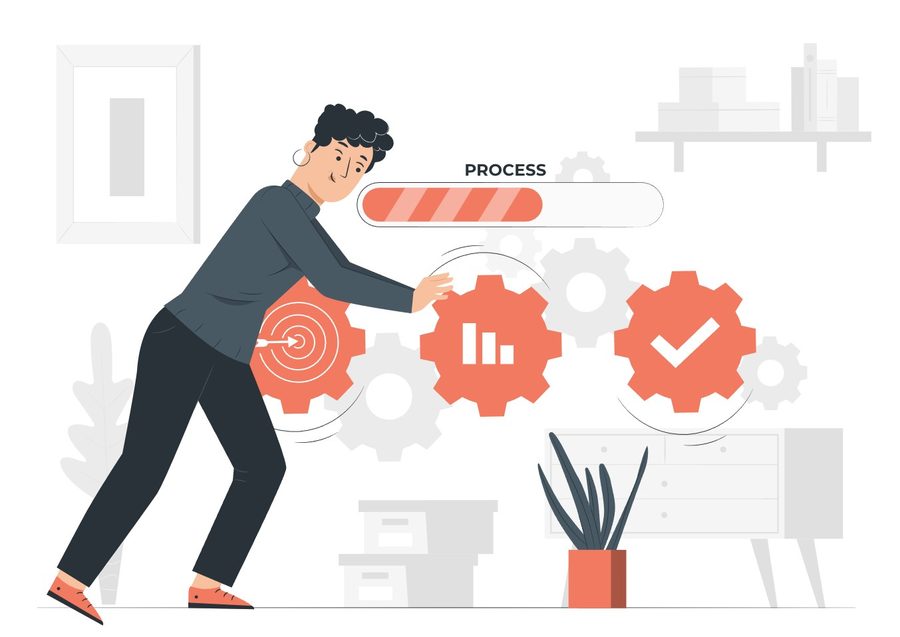
Detection is evidence, removal is a separate decision with its own risk. A clean report does not prove the site is clean afterwards.
If you cannot reach the admin area at all, the plugin cannot help until access is restored through recovery links or the host.
What site owners ask before the first scan.